How to Remove Music from iMovie
Added songs delete in two clicks and recorded ones take one more step, so here's how to remove music from iMovie both ways.
Tested by the Remove Music From Video team · Updated November 17, 2026
How to remove music from iMovie, in short
How to remove music from iMovie: if you added the song, select the green music clip and press Delete. If the song was recorded with the voice, iMovie can only mute both. Remove the music from the original clip here, import the new MP4 and drag it onto the old clip, then choose Replace.
Where Is the Music: Added, or Recorded?
How to remove music from iMovie depends on how the song got into your project.
Added in iMovie
A song you dragged in
It sits in the background music well or as a green clip under the video. Select it and press Delete, or click Volume, then Mute. That is how to remove music from iMovie in two clicks.
Done? You don't need the steps below.
Recorded in the clip
A song playing while you filmed
A party speaker, a car radio, a clip someone sent with a soundtrack. iMovie hears voice and song as one sound, so Mute takes the toast too. Here, how to remove music from iMovie starts with the remove music from video tool.
The four steps below show how to remove music from iMovie clips like this.
How to Remove Music from iMovie in 4 Steps
For music recorded in the clip: step 1 is the tool, and steps 2 to 4 finish how to remove music from iMovie.
Choose the original clip
Step 1 of how to remove music from iMovie: pick the clip from Photos or Finder, or export it with File > Share > File. Only the audio and a few small frames are uploaded. Or play the party example first. Other editors: how to remove music from a video.
Your video without music will play here
- 5 free minutes for new accounts
- Same length and frames as your clip
- Voice and music tracks included
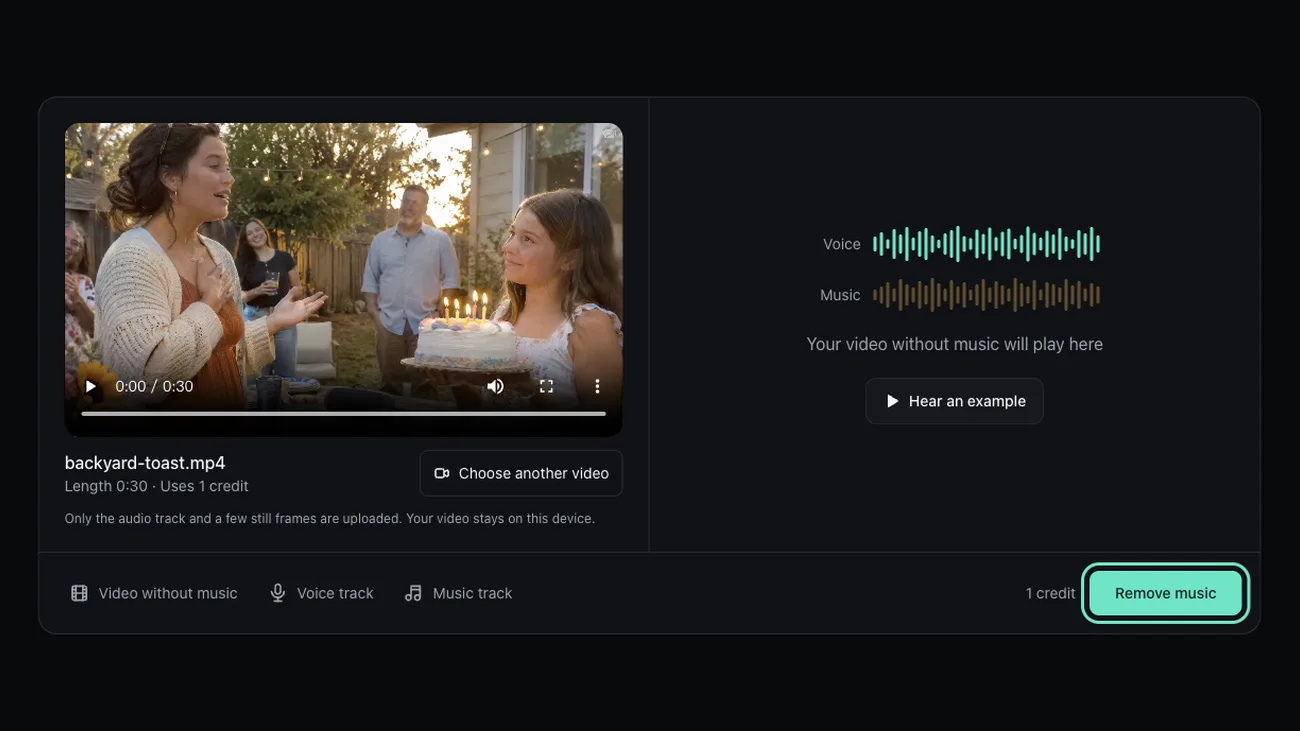
Remove the music
Press Remove music under your clip; a 1 minute clip takes 30 to 40 seconds. Its length and credits show before you start, the real first test of how to remove music from iMovie clips.
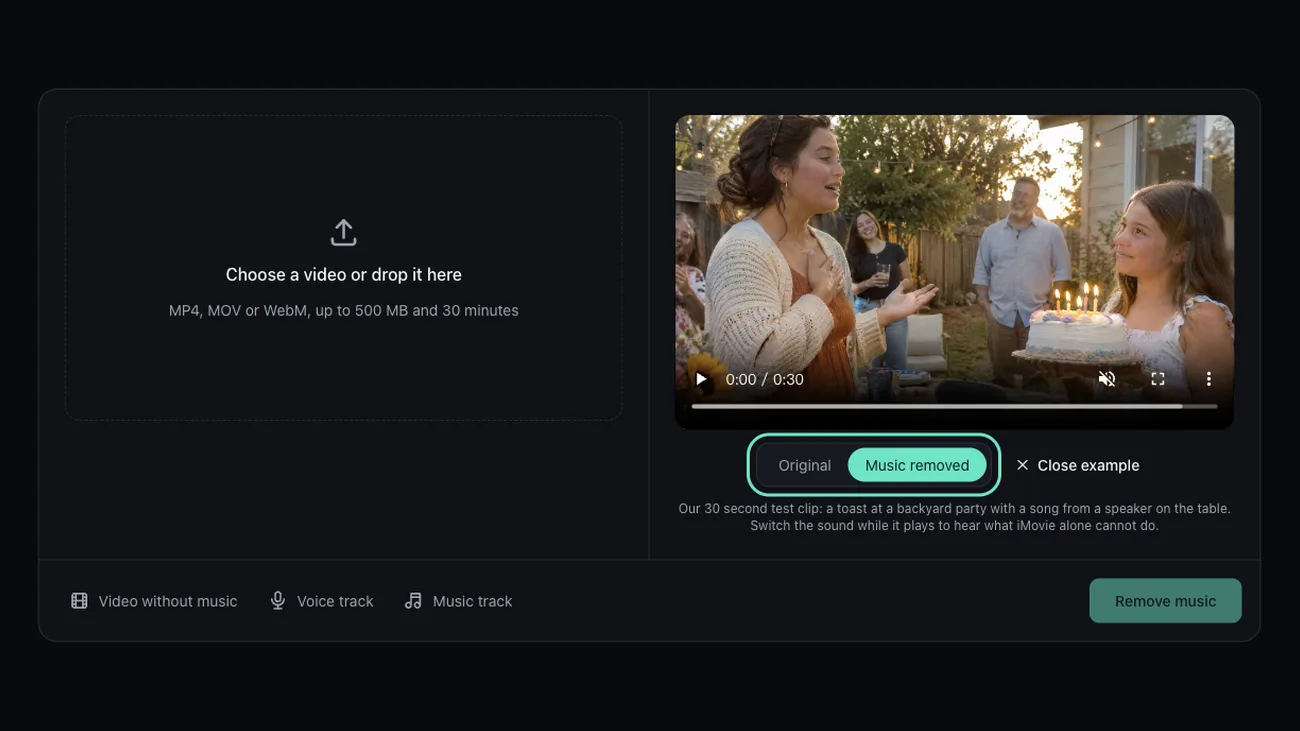
Check, then download
Switch between Original and Music removed on the loudest bar of the song, then save the MP4. It keeps the length, frame rate and picture of your clip, which lets how to remove music from iMovie work without a re-edit.
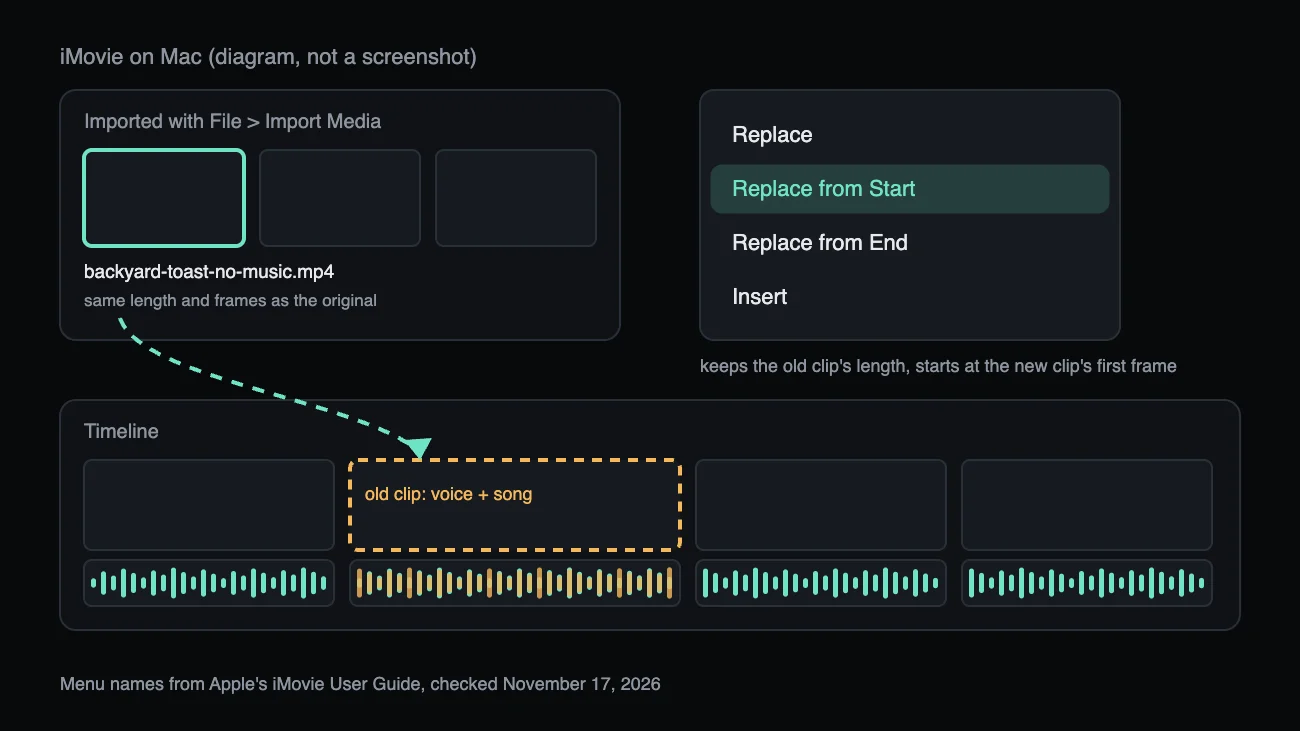
Replace the clip in iMovie
Choose File > Import Media and add the new MP4. If the timeline clip starts where the original starts, drag the new MP4 onto it and choose Replace from Start: length, titles and transitions stay. That is how to remove music from iMovie without redoing the edit.
What the Toast Sounds Like After
Here is how to remove music from iMovie in practice: a 30 second test with the party mix, the voice alone and the song we took out.
Before: a toast with a song from the speaker

After: the voice on its own

Taken out: the song

What iMovie Can Do on Its Own
We read Apple's iMovie User Guide on November 17, 2026. Here is what it offers for how to remove music from iMovie, and where it stops.
iMovie on Mac
- Select the clip and choose Modify > Detach Audio (Option-Command-B). The sound becomes a green clip under the video.
- Select that clip and press Delete, or click Volume, then Mute.
- For steady noise like a plane overhead, turn on Reduce background noise under Noise Reduction and Equalizer.
iMovie on iPhone and iPad
- Tap the clip, tap Actions, then Detach. A blue audio clip appears.
- Tap it and tap Delete, or tap Audio, then Mute.
- Background music (green) ducks under your clip's sound but stays.
Where iMovie stops
Every tool above works on the whole sound: a detached clip still holds voice and song together, Mute silences both, and Reduce background noise is for steady noise. A standard noise reducer, not iMovie's own, cut our party song by only 2 dB. That gap is why how to remove music from iMovie needs a separation tool.
Sources, Apple iMovie User Guide: Detach audio (Mac) · Change the volume (Mac) · Correct and enhance audio (Mac) · Edit audio clips (iPhone)
When the Song Doesn't Fully Go Away
Three problems people hit after they learn how to remove music from iMovie clips, and the fix for each.
A faint song is still there
Why
The speaker was near the mic, or room echo blurred song and speech.
What to do
Run the voice track through the voice isolator again, or Option-click the volume line in iMovie and dip that bar.
The new clip is out of sync
Why
The timeline clip was trimmed from the middle, and the new MP4 starts at the first frame.
What to do
Hold R, drag the same range of the new clip onto the old one and choose Replace. Every frame is there, so how to remove music from iMovie still ends in sync.
Cheering and chatter are left
Why
They are voices too, and the tool keeps every voice it hears.
What to do
Dip them with iMovie's volume keyframes. For wind, hum or hiss, see remove background noise from video.
How We Tested These Steps
On November 17, 2026 we tested how to remove music from iMovie clips: a reading over an original song in a simulated room, and a 1080p, 30 fps MP4 through the site's own audio swap.
- quieter song between sentences
- 43 dB
- change in the voice level
- 0.1 dB
- frames kept in a 1080p, 30 fps MP4
- 900 / 900
- taken off the song by a standard noise reducer
- 2 dB
The party song drops out
With the song 6 dB under the toast, the gaps between sentences got 43 dB quieter and the voice rose from 6 to 21 dB over the rest. That is the part of how to remove music from iMovie that iMovie cannot do.
The picture comes back unchanged
All 900 frames of a 30 second 1080p MP4 came back with the same video checksum, so how to remove music from iMovie costs you no re-edit and no quality.
Noise tools don't touch music
A standard noise reducer cut the song between sentences by 2 dB and a voice-band equalizer by 3 dB, with a phone-call sound. So how to remove music from iMovie cannot rely on noise tools.
What it does not do
- For how to remove music from iMovie we followed Apple's guide; we did not film the iMovie steps.
- The song was synthesized pop; a live band with cymbals is harder.
- A MOV comes back as an MP4.
Last updated: November 17, 2026 · Tested by the Remove Music From Video team
How to Remove Music from iMovie: Questions
Short answers to what people ask about how to remove music from iMovie.
How to remove background music in iMovie?
Select the green clip in the background music well and press Delete. For music in the recording, follow how to remove music from iMovie above.
How to remove music from a video in iMovie and keep the voice?
iMovie can't split them, so how to remove music from iMovie means removing it here, then replacing the clip. The voice moved by 0.1 dB in our test.
Does iMovie have a vocal or music remover?
Not in Apple's guide. Volume, Mute, fades, Reduce background noise and equalizer presets all act on the whole sound.
How to remove music from iMovie on iPhone?
Delete or mute a song you added. For a recorded one, open this page in Safari, pick the clip from Photos, and add the result to your project.
Will the new clip lose quality?
Not from us: the picture is copied, not re-encoded, so how to remove music from iMovie costs no quality.
Now Take the Song Out of Your Own Clip
You know how to remove music from iMovie. Choose the original clip and the tool does the part iMovie can't.
Related pages
- How to Remove Music from a VideoFour tested steps to take the music out of a video and keep the voice, plus fixes for what's left.
- Remove Music from TikTok VideoTurn off a TikTok sound, or take a song your camera heard out of the video and keep your voice.
- Remove Music from a Video on iPhonePhotos can only mute. Take a song out of an iPhone video in Safari, keep the voice and save it back to Photos.
- PricingCredit packs and monthly or yearly plans