How to Remove Music from a Video on iPhone
Photos only mutes the whole clip, so here's how to remove music from a video on iPhone and keep every word.
Tested by the Remove Music From Video team · Updated November 18, 2026
How to remove music from a video on iPhone, in short
How to remove music from a video on iPhone: open this page in Safari, pick the video from Photos and press Remove music, then save the MP4 from Files back to Photos. The Photos app alone can only mute all of the sound, or turn background sound down with Audio Mix on videos shot with Spatial Audio on iPhone 16 and later.
Do You Want Silence, or Just No Song?
How to remove music from a video on iPhone depends on what should stay.
Silence
Nothing should be heard
Open the video in Photos, tap Edit, tap the speaker button so it shows a line, then tap Done. Music, voices and every other sound go. That is the quick way to remove music from a video on iPhone when you want silence.
Need the words to stay? Take the other path to remove music from a video on iPhone.
Keep the voice
Only the song should go
A car radio, a cafe speaker, a song in a clip someone sent you. Photos hears voice and song as one sound. To remove music from a video on iPhone and keep the talking, start with the remove music from video tool in Safari.
The four steps below show how to remove music from a video on iPhone this way.
How to Remove Music from a Video on iPhone in 4 Steps
To remove music from a video on iPhone, stay in Safari: step 1 is the tool, and step 4 puts the new video back in Photos.
Choose the video from Photos
Step 1 to remove music from a video on iPhone: tap the box below, choose Photo Library and pick the video. A 4K HDR clip is fine, since only the audio and a few small frames are uploaded. Or play the car example first. Editing in an app? Read how to remove music from iMovie.
Your video without music will play here
- 5 free minutes for new accounts
- 4K, HDR and orientation kept
- Voice and music tracks included
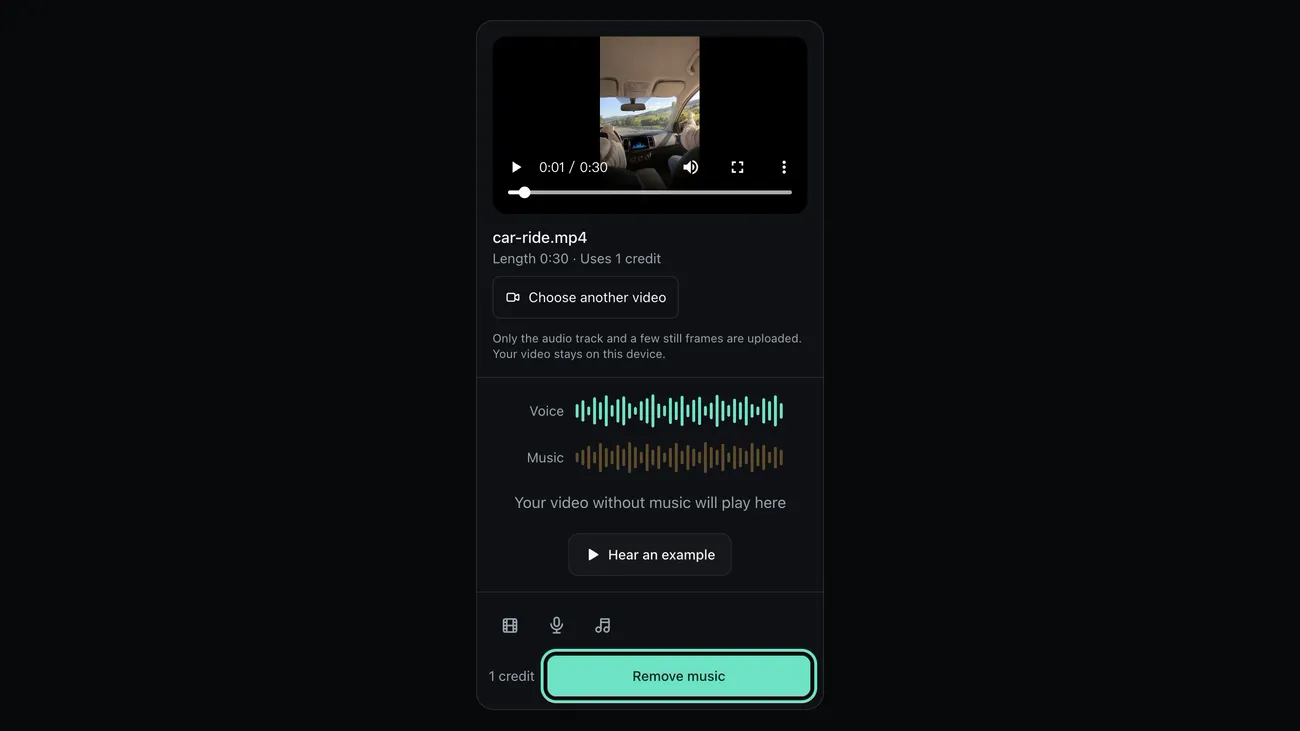
Remove the music
Press Remove music; a 1 minute video takes 30 to 40 seconds. A 303 MB 4K clip in our test sent 1.4 MB of audio, so you can remove music from a video on iPhone without a big upload.
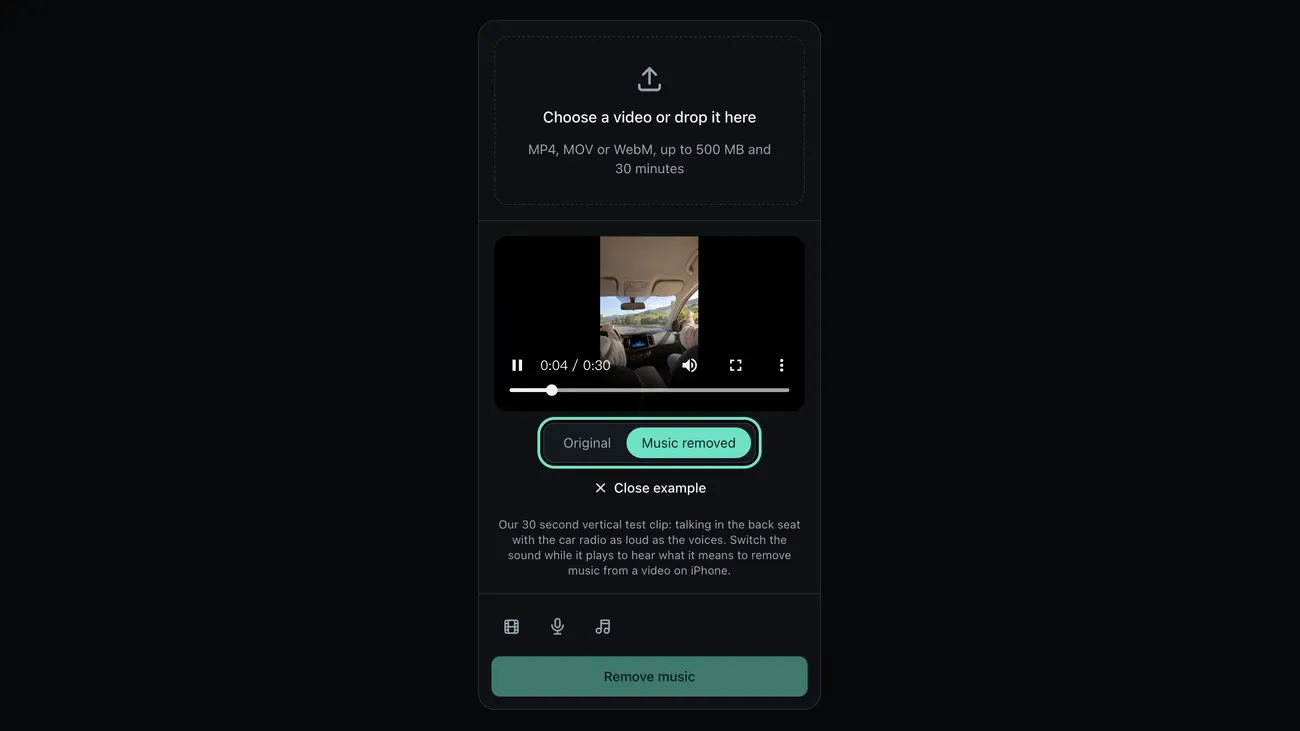
Check, then download
Switch between Original and Music removed where the song is loudest, then tap Download MP4. You remove music from a video on iPhone without touching the picture: the same frames, HDR and orientation.
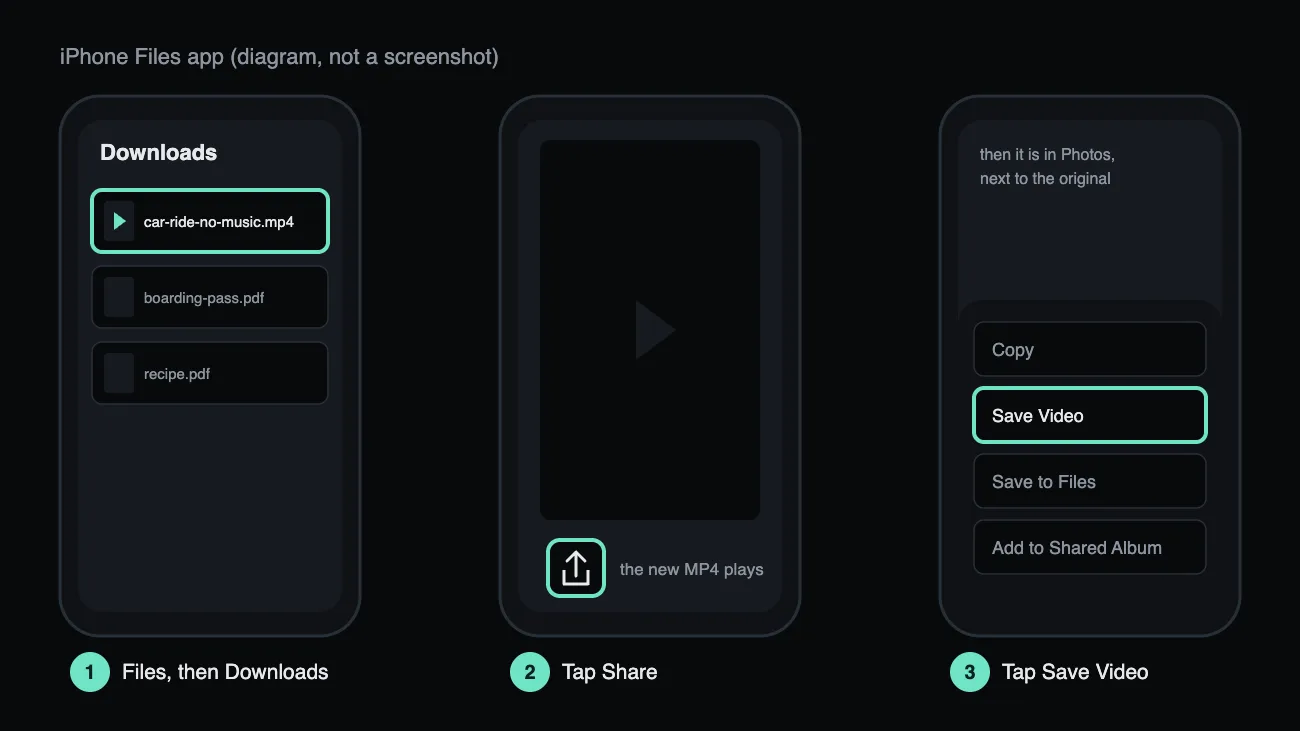
Save it to Photos
Safari puts the MP4 in the Files app, under Downloads. Open it, tap Share, then Save Video, and it shows up in Photos next to the original. That is how to remove music from a video on iPhone from start to finish.
Hear the Car Radio Come Out
Here is what it sounds like to remove music from a video on iPhone: the back seat with the radio as loud as the talking, the voice alone and the song we took out.
Before: talking over the car radio

After: the voice on its own

Taken out: the radio song

What the Photos App Can Do on Its Own
On November 18, 2026 we read Apple's guide to editing videos on iPhone, last published in May 2026. Here is what Photos offers to remove music from a video on iPhone, and where it stops.
Mute, on any video
- Open the video in Photos and tap Edit.
- Tap the speaker button so it shows a line through it, then tap Done.
- Voice, music and every other sound go together, so Mute alone cannot remove music from a video on iPhone. Tap it again to bring the sound back.
Audio Mix, iPhone 16 and later
- Works only on videos recorded with Spatial Audio on iPhone 16 models, iPhone 17 models and iPhone Air.
- Tap Edit, then Audio Mix, and choose Standard, In-Frame, Studio or Cinematic. Studio reduces background sounds and reverb; In-Frame reduces sounds from sources outside the frame.
- Drag the intensity slider, then tap Done.
Trim
- If the song plays only at the start or the end, drag the ends of the timeline past it, tap Done, then Save Video or Save Video as New Clip.
Where Photos stops
Mute takes your voice along with the song. Audio Mix is built to reduce background sound and reverb in Spatial Audio recordings; Apple doesn't call it a music remover, and it can't open a video from an older iPhone, a screen recording or a clip someone sent you. That gap is why you remove music from a video on iPhone with the steps above.
Source, Apple Support: How to edit videos on your iPhone, iPad, or Mac
When the Song Is Still There
Three problems people hit when they remove music from a video on iPhone, and the fix for each.
A faint song is left on loud words
Why
The radio was as loud as the talking, or the car added echo. In our test the voice still sat 23 dB over what was left at its loudest moments.
What to do
Run the voice track through the voice isolator once more; to remove music from a video on iPhone can take two passes.
The song's singer is still there
Why
The tool keeps every voice it hears, and a singer is a voice too. Only the instruments go when you remove music from a video on iPhone.
What to do
Trim the sung part in Photos. More options: how to remove music from a video.
The new video isn't in Photos
Why
Safari saves downloads to the Files app, not to Photos.
What to do
Open Files, then Downloads, tap the MP4, tap Share, then Save Video. Each time you remove music from a video on iPhone, the copy lands there first.
How We Tested These Steps
On November 18, 2026 we tested how to remove music from a video on iPhone: talking over a song through simulated car speakers, plus a 4K HDR HEVC MOV and a 720p MP4 through the site's own audio swap.
- quieter song between sentences
- 54 dB
- change in the voice level
- 0.15 dB
- frames kept in a 4K HDR clip
- 1,800 / 1,800
- uploaded for a 303 MB, 1 minute 4K clip
- 1.4 MB
The radio drops out
With the song as loud as the talking, the gaps between sentences got 54 dB quieter and the voice went from level with the song to 19 dB over the rest. That is the part Photos cannot do when you remove music from a video on iPhone.
HDR and orientation survive
A 60 second 4K HEVC clip in HLG HDR with an upright rotation flag came back with all 1,800 frames, the same video checksum, and its HDR color tags and rotation in place, so you remove music from a video on iPhone without losing HDR. A 720p MP4 kept all 900 frames.
The upload stays small
From the 303 MB 4K clip the tool read 1.4 MB of audio plus a few small frames, so you can remove music from a video on iPhone over mobile data.
What it does not do
- We followed Apple's guide for Photos and did not film these steps on an iPhone, nor test Audio Mix.
- We tested in a desktop browser at phone width with iPhone-style files.
- The song had no singer; a singer's voice would stay with the talking.
- A MOV comes back as an MP4.
Last updated: November 18, 2026 · Tested by the Remove Music From Video team
Remove Music from a Video on iPhone: Questions
Short answers to what people ask about how to remove music from a video on iPhone.
How to remove music from a video on iPhone without an app?
Use Safari. This page runs in the browser, so there is nothing to install: pick the video from Photos, remove the music, then save the MP4 back to Photos.
Can I remove music from video iPhone friends sent me?
Yes, if you have the rights to it. Save it to Photos or Files first, then pick it here. Audio Mix cannot help with those clips, but you can still remove music from a video on iPhone here.
Does Audio Mix remove music?
Apple describes it as reducing background sounds and reverb in Spatial Audio videos from iPhone 16 and later, not as a music remover. Check the result by ear before you rely on it to remove music from a video on iPhone.
Will it lower the quality of my video?
No. The picture is copied, not re-encoded, so you remove music from a video on iPhone and keep 4K, HDR and the frame rate.
Is it free?
New accounts get 5 free minutes while the daily allowance lasts, enough to remove music from a video on iPhone a few times.
Now Take the Song Out of Your Own Video
You know how to remove music from a video on iPhone. Pick the video from Photos and the tool does the part Photos can't.
Related pages
- How to Remove Music from a VideoFour tested steps to take the music out of a video and keep the voice, plus fixes for what's left.
- Remove Music from iMovieDelete a song you added in iMovie, or take out one recorded with the voice and replace the clip.
- Remove Music from TikTok VideoTurn off a TikTok sound, or take a song your camera heard out of the video and keep your voice.
- PricingCredit packs and monthly or yearly plans